To add or edit pre-orders, click 'Accounts' then 'Pre-Orders'
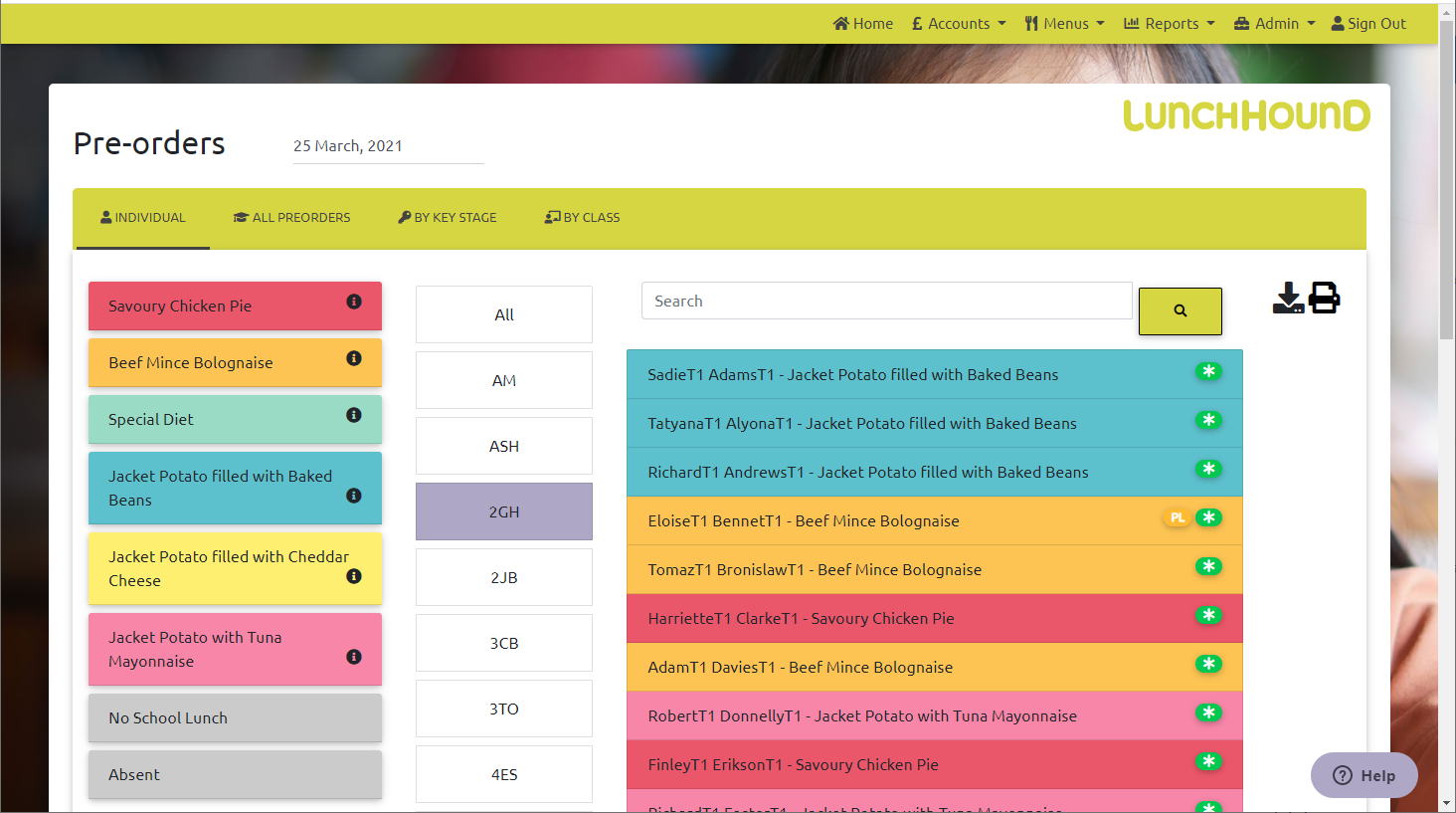
Use the 'All Pre-orders / By Key Stage / By class' buttons to view subtotals and total orders
To enter new orders:
- Click the 'Individual' button if not already selected. Today's menu will be shown, along with a list of registration groups.
- Select the menu item from the list, then either select the registration group the child is in, or click 'All' and search for the child using the search box.
- Click the child. The order will be saved. If the order is not saved, it may be past your cutoff time.
You will see icons next to the names of some children. They are:
- (red hand) This child has an allergy to the currently selected menu item. You will not be able to pre-order the current item for this child.
- (*) This child is FSM or infant free.
- (PL) This child should have a packed lunch from home according to their meal pattern.
To download a list of all orders on the system today, click the 'Download' arrow. This will download a list in Excel format. To print a report by class, use 'Reports' then 'Pre-orders'.