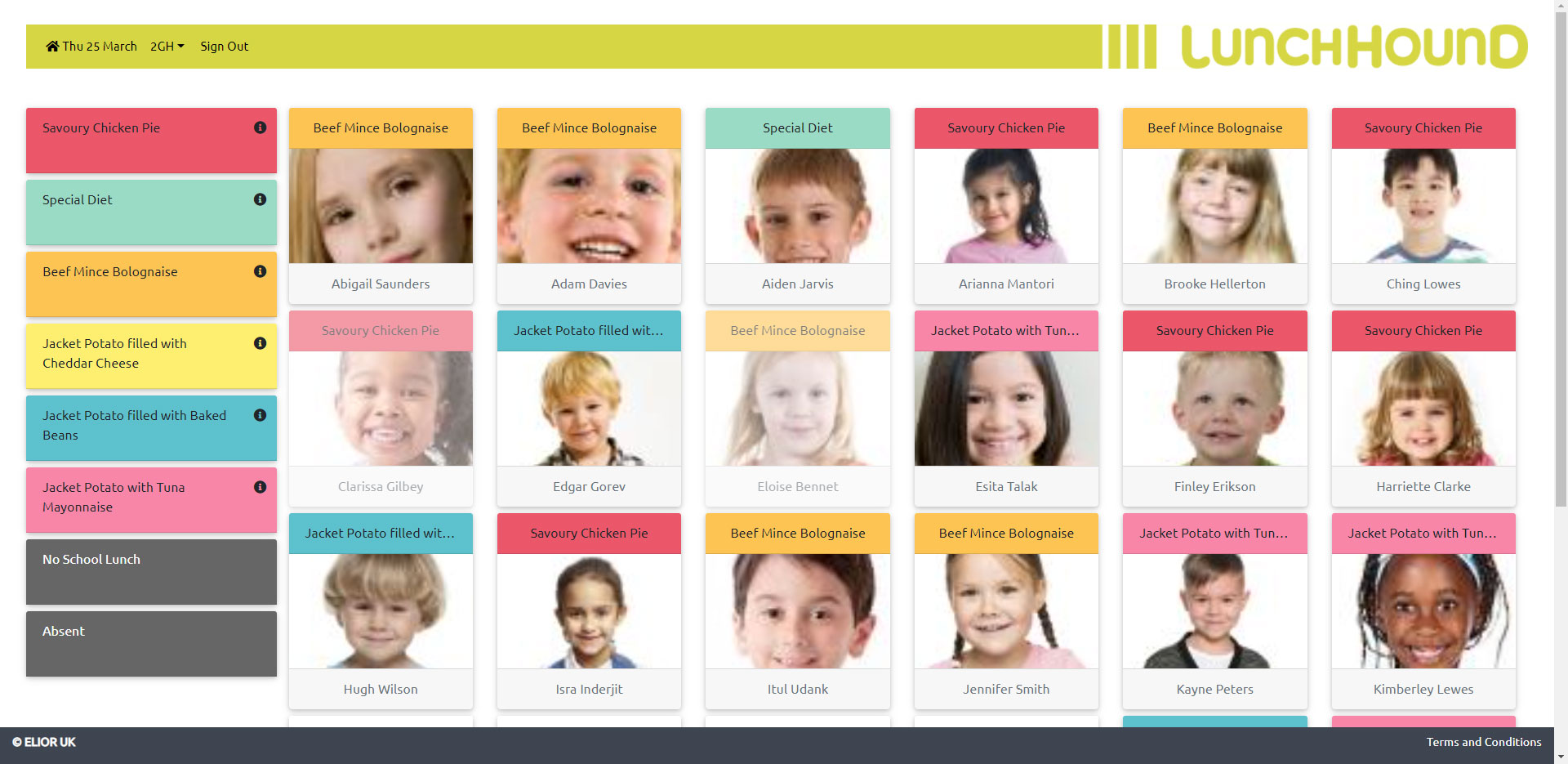
1) If your class is not displayed, click on the class dropdown in the green menu bar to choose the correct class.
2) The next time you log-in your chosen class will be displayed.
3) By default all children are shown as 'No School Lunch'.
4) To start Pre-Ordering, pick a menu option from the choices shown on the left hand side.
5) Click each child who would like that menu option, these choices will be fed automatically to the kitchen.
6) If a child requires a special meal for medical reasons, select the MEDICAL DIET option then click on the child.
7) If a child is absent, select the ABSENT option then click on the child. If the child is simply late their ABSENT mark will be overridden, and their Pre-order selection made by the school office.
8) Once all choices have been made, sign-out of Classroom Pre-Order. The kitchen will have been informed of your choices and any students you did not make a selection for will remain as 'No School Lunch'. These can be amended by the office if required.
9) If you cannot select an item for a particular child, this may be because they have no credit, they have a dietary requirement that makes that item unsuitable, their meal pattern indicates they should be having a packed lunch today or their parent has requested that they are not served a lunch.